
Turn a brief into a visual draft
Describe the subject, setting, lighting, and style. Generate a first image to decide which parts of the idea deserve another pass.
Turn text prompts or reference photos into images with an AI image generator. Create product visuals, illustrations and storyboard frames, then review the composition and refine your next version.
Text to image · image to image
Start with a written idea for text-to-image creation, or upload a reference for image-to-image generation. Explore the subject, composition and visual style, then choose what to refine.
Describe the subject, setting, lighting, and style. Generate a first image to decide which parts of the idea deserve another pass.
Upload an image to guide the subject, palette, or composition. Describe the setting and visual changes you want to explore, then check the product details in the result.
Use a written scene or an uploaded sketch to explore framing, atmosphere, and visual style before committing to a shot direction.
Select an available aspect ratio for a social post, campaign visual, or wide story frame. Canvas and resolution options depend on the selected model.
Product visuals · story frames · social content
Use the AI image generator to explore a product shot, a storyboard setting or an editorial scene. Review subject details, lighting and composition before choosing the version to develop.
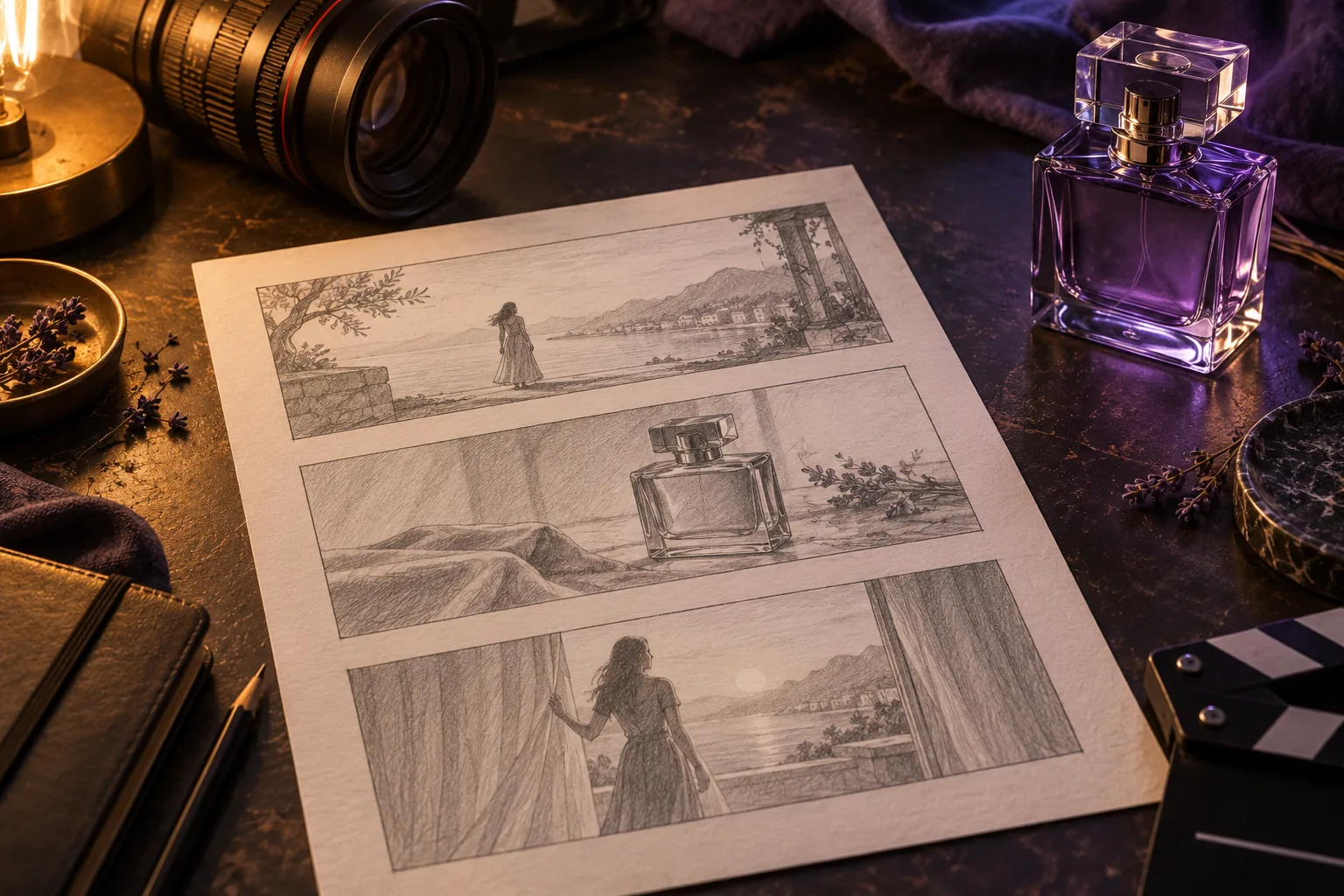
Explore backgrounds, materials, and lighting around a product reference. Review the silhouette and surface details before building the campaign around a direction.
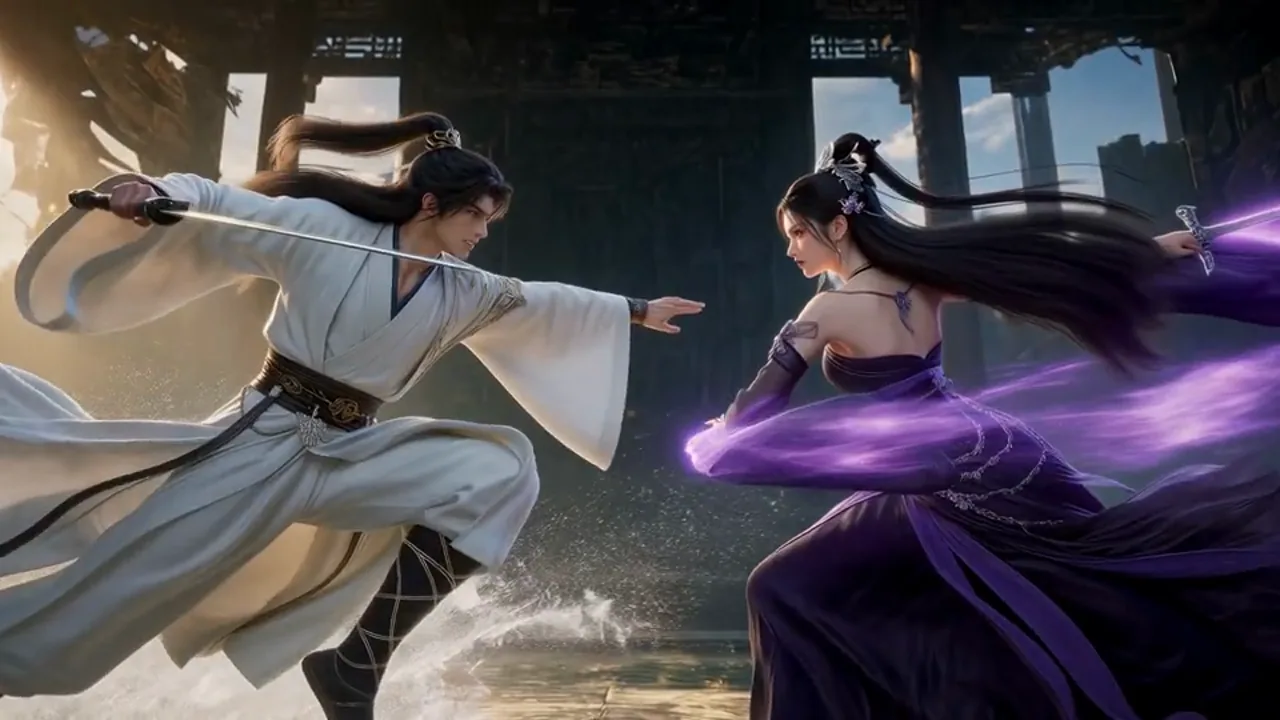
Develop a setting, color palette, and frame for a story or mood board. Use the draft to decide how the subject and environment should share the image.
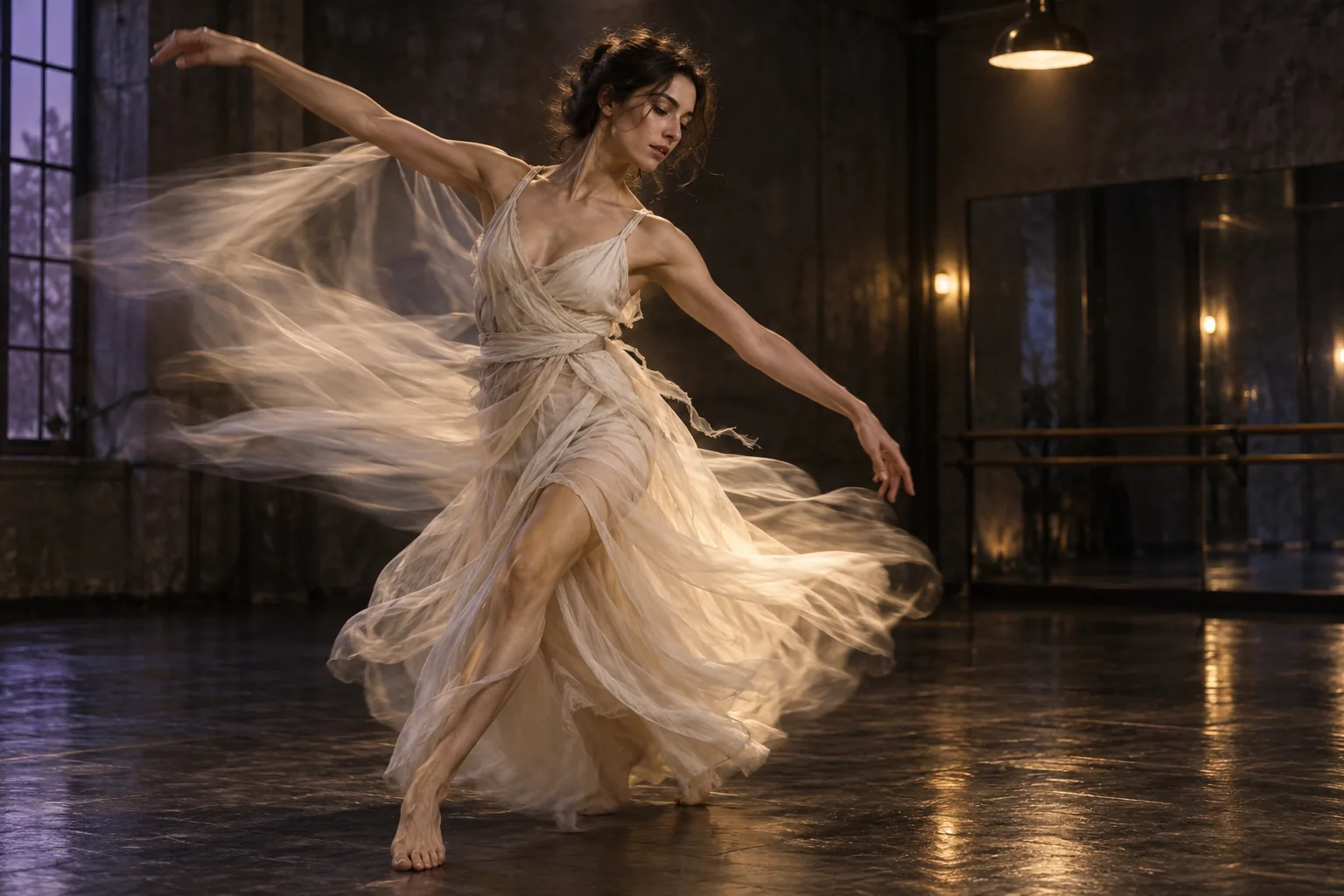
Explore a specific moment, natural light, and a composition that suits the post. Check the framing and leave room for any text you plan to add later.
Your image creation workflow
Start with the image you need and one clear visual direction. Review the first result, then focus the next generation on the detail that matters most.
01
Say whether you need a product concept, story frame, or social visual. Describe the main subject and the feeling the image should convey.
02
Upload a product photo, sketch, or composition reference when it helps. Explain which visible details should guide the new image.
03
Select an image model and the available aspect ratio and resolution. Check the displayed credit cost before generating.
04
Inspect the subject, edges, materials, and composition. Adjust the prompt or reference for a new generation with a clearer direction.
Common questions
Learn how prompts, reference images, model choices, and credits fit into your first visual draft.
Sign in and check your available credits. Each generation uses credits, with the cost shown before you submit. The selected model and output settings determine the amount.
Yes. Text-to-image lets you start with a brief alone. Describe the subject, setting, lighting, and composition, then review the generated image to choose your next direction.
Yes. Upload an image for image-to-image generation and explain how it should guide the subject, layout, or style. File types, upload counts, sizes, and prompt limits depend on the selected model; follow the limits shown in the generator.
The model picker includes Nano Banana 2 Lite, Nano Banana 2, GPT Image 2, GPT Image 2.5, and other available image models. Choose a model, then review its input limits, settings, and credit cost.
Check the product shape, colors, materials, and any visible text, along with the composition. If a detail needs work, adjust the prompt or reference and generate another version before using the image in published content.
Start creating images
Bring a short brief or a useful reference. Generate a visual draft, review what works, and make your next creative decision with a picture in front of you.